slideshow image 1 Slideshow Image 2 Slideshow Image 3 Slideshow Image 4 Slideshow Image 5 Slideshow Image 6 Slideshow Image 7 Slideshow Image 8 Slideshow Image 9 Slideshow Image 10 Slideshow Image 11 Slideshow Image 12 Slideshow Image 13 Slideshow Image 14 Slideshow Image 15 Slideshow Image 16 Slideshow Image 17

Pages

Hello!

I'm a custom children's photographer who creates on-location custom portraits of newborns, children & familes using natural light only. For stunning, modern images that are as unique as your children and capture real moments contact me at info@eleniphotography.com or 519.980.7544

Become a Fan of Eleni Photography by clicking like

Eleni Photography on Facebook
Showing posts with label Photoshop. Show all posts

2009/01/04

Happy [belated] New Year!!!!!!!!!!!!!!!!

Hello everyone!

It was great spending time with family and friends and relaxing!
I will slowly be sifting through the holiday photographs and posting some here.
For now I'll leave you with this nifty little graphic below. It's a favicon.
What's a favicon you ask? It's short for favorites icon. If my website www.eleniphotography.com is a favorite of yours - add it to your favorites list and this cute favicon will show up making it quicker to find and identify.
I also updated my website with the latest cuties I photographed in the last half of 2008 so take a peek and see what's new;-)

2006/09/29

Photoshop Fun - Layers


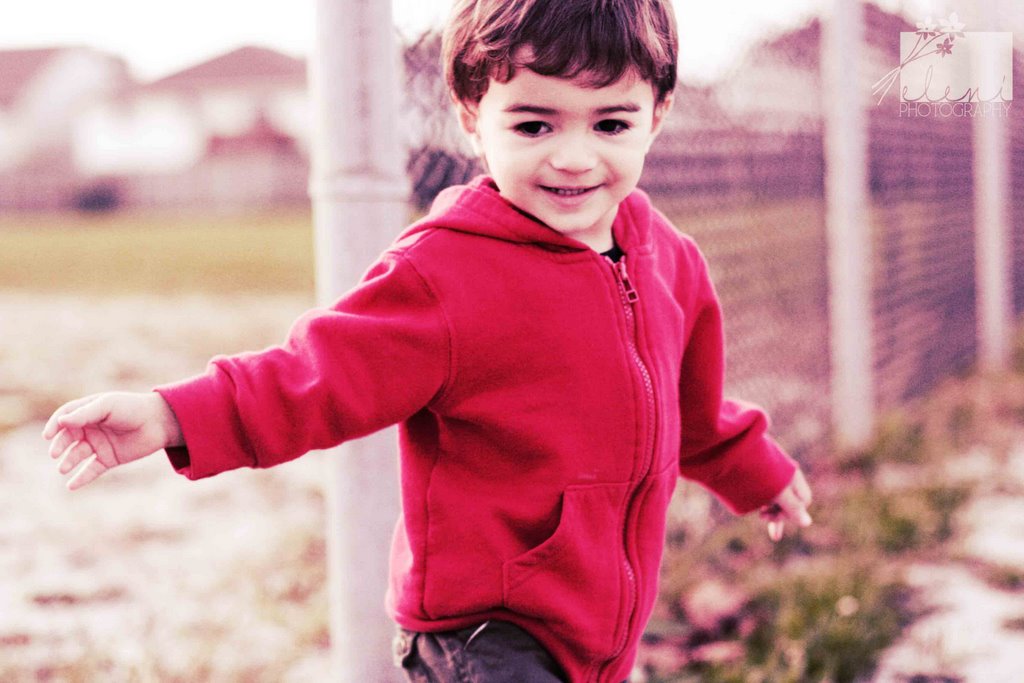
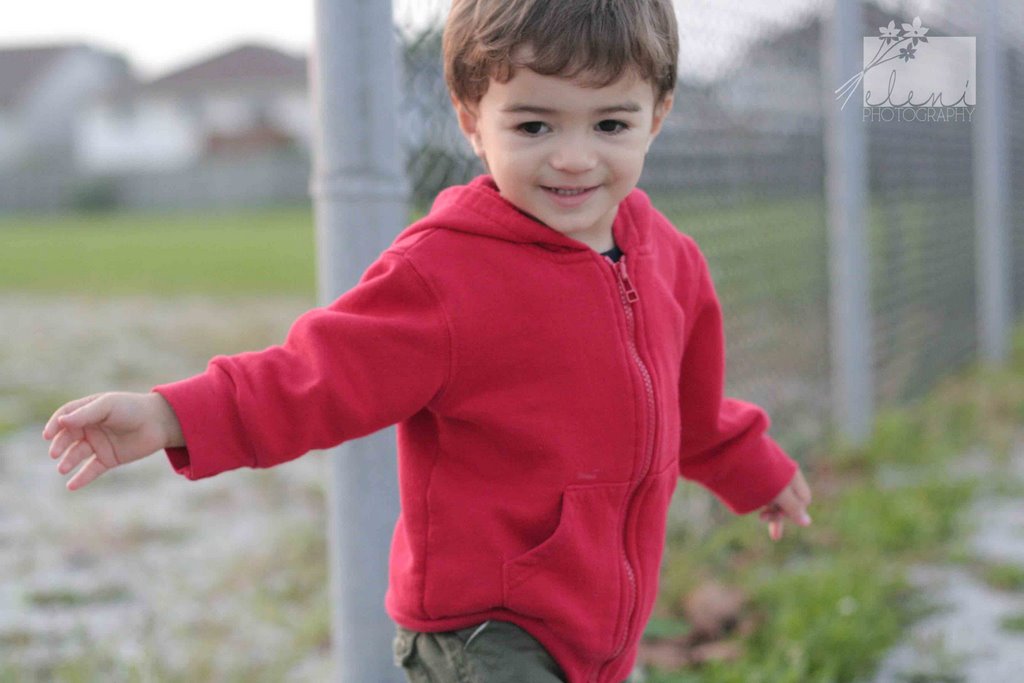
To get the look of the top photo you have to layer a "normal" colored photo on top of a sepia layered photo. (See sidebar for the last Photoshop Fun lesson on Super Sepia.)
The amazing thing about Photoshop is that you can stack as many layers on top of one another as you like. Imagine each layer as being a transparency.
So pick a photo you like and go to Layer>Duplicate Layer> OK
Now in the Layer palette you will see two versions of the same photo. highlight one of these layers and make it sepia by hitting Control U on your keyboard. Your photo should immediately change. You can also play with the Opacity in the upper right of the Layer palette. In this manner you can decrease the intensity a bit.
I think that it gives my upper photo a nostalgic 70's feel. I put up the regular colored photo beneath it for comparison.
Have fun trying it out!